domTrace Documentation
Complete guide to using domTrace - Your bulk domain availability checker
Table of Contents
Getting Started
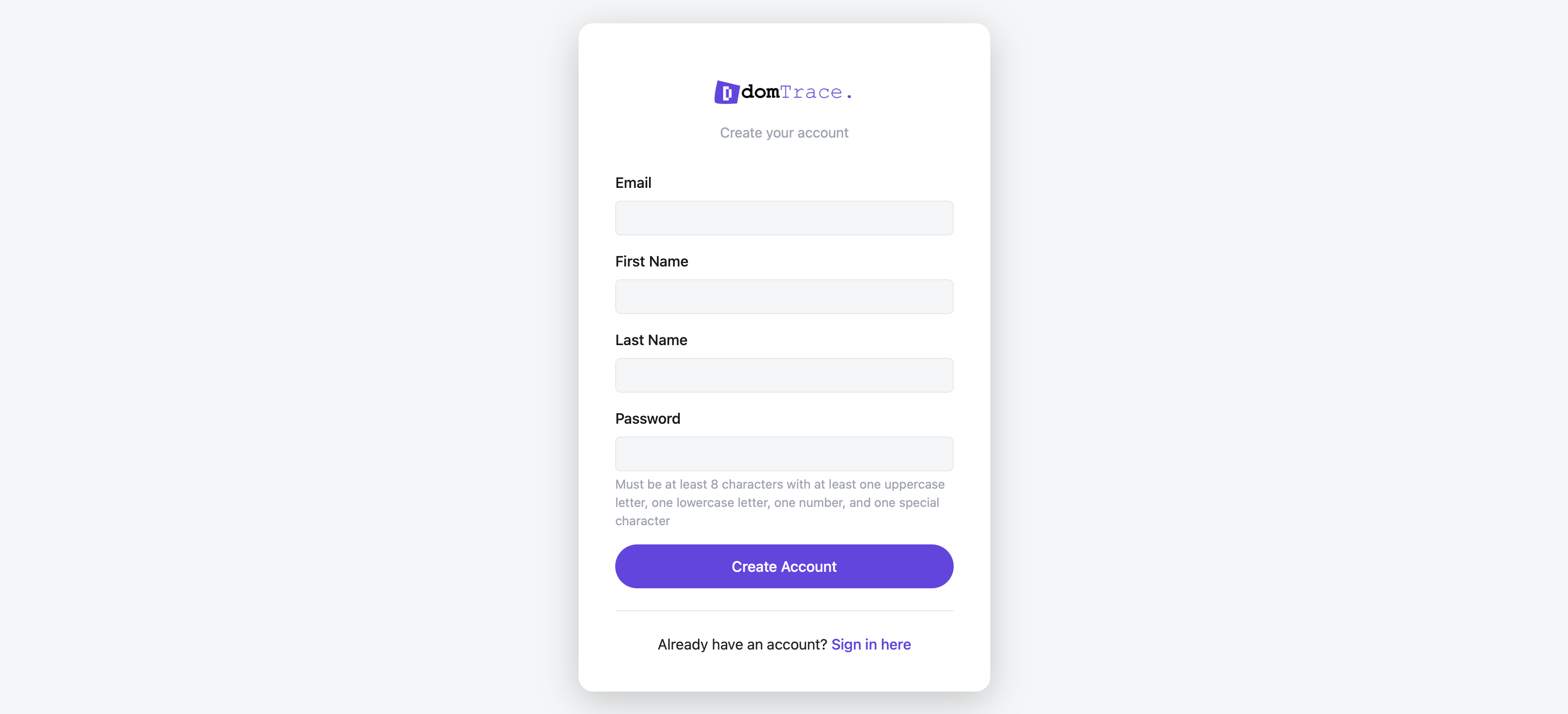
Creating an Account
- Click on "Sign Up" from the landing page
- Fill in your email, first name, last name, and password
- Log in with your credentials
- Start checking domains immediately with your free account!
Your First Domain Check
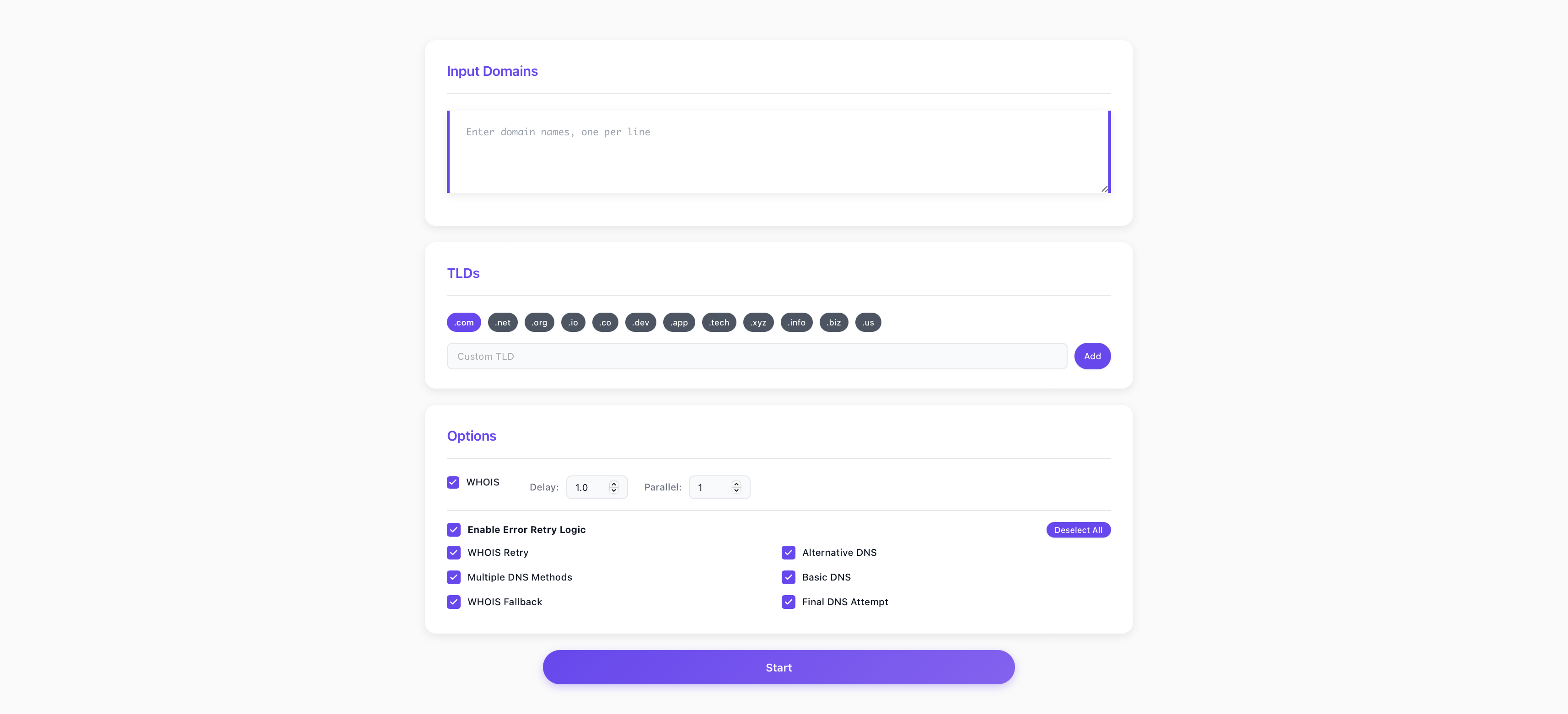
After logging in, you'll see the main domain checker interface. Here's how to check your first domains:
- Enter Domains: Type domain names in the text area (one per line) or upload a .txt file
- Select TLDs: Choose which TLDs to check (.com, .net, .org, etc.)
- Configure Options: Set delay and parallel workers based on your tier limits
- Start Checking: Click the "Start" button to begin the domain availability check
- View Results: See real-time results as domains are checked
Checking Domains
Input Methods
domTrace supports multiple ways to input domains for checking:
- Text Input: Type or paste domain names directly into the text area (one per line)
- File Upload: Upload a .txt file containing domain names (one per line)
- Bulk Processing: Process hundreds or thousands of domains in a single run
Selecting TLDs
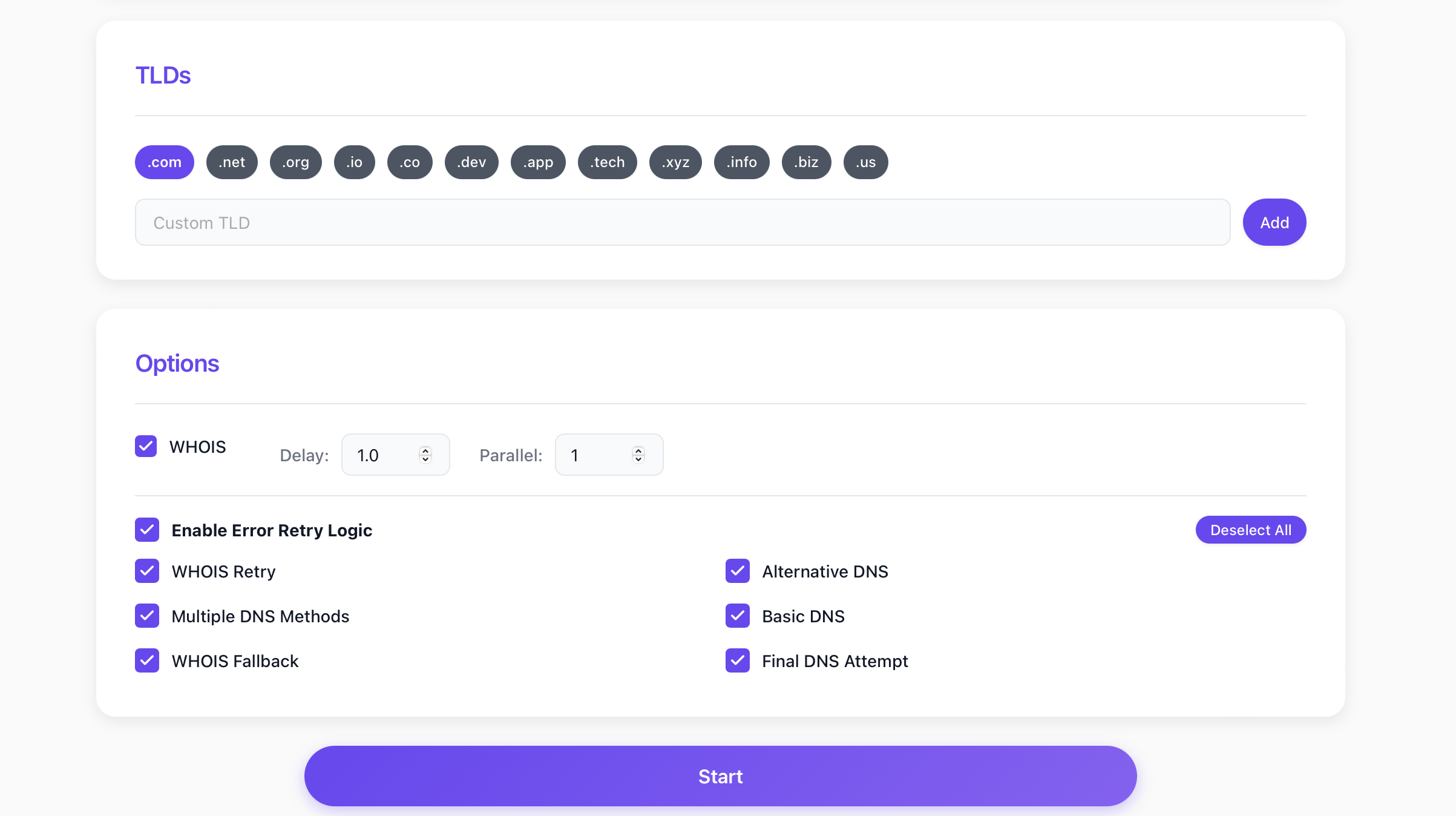
Choose from a wide variety of TLDs to check:
- Default TLDs: .com, .net, .org (available to all users)
- Custom TLDs: Add any TLD you want (PRO, ULTRA, and UNLIMITED tiers only)
- Popular Options: .io, .co, .ai, .xyz, .app, .dev, and many more
Configuring Check Options
Before starting, you can configure how domains are checked:
- Delay: Time between checks (in seconds). Higher delays reduce server load but take longer
- Parallel Workers: Number of simultaneous checks. More workers = faster checking (tier-limited)
- WHOIS Checking: Enable/disable WHOIS lookups for more accurate results
Viewing Results
Real-time Progress
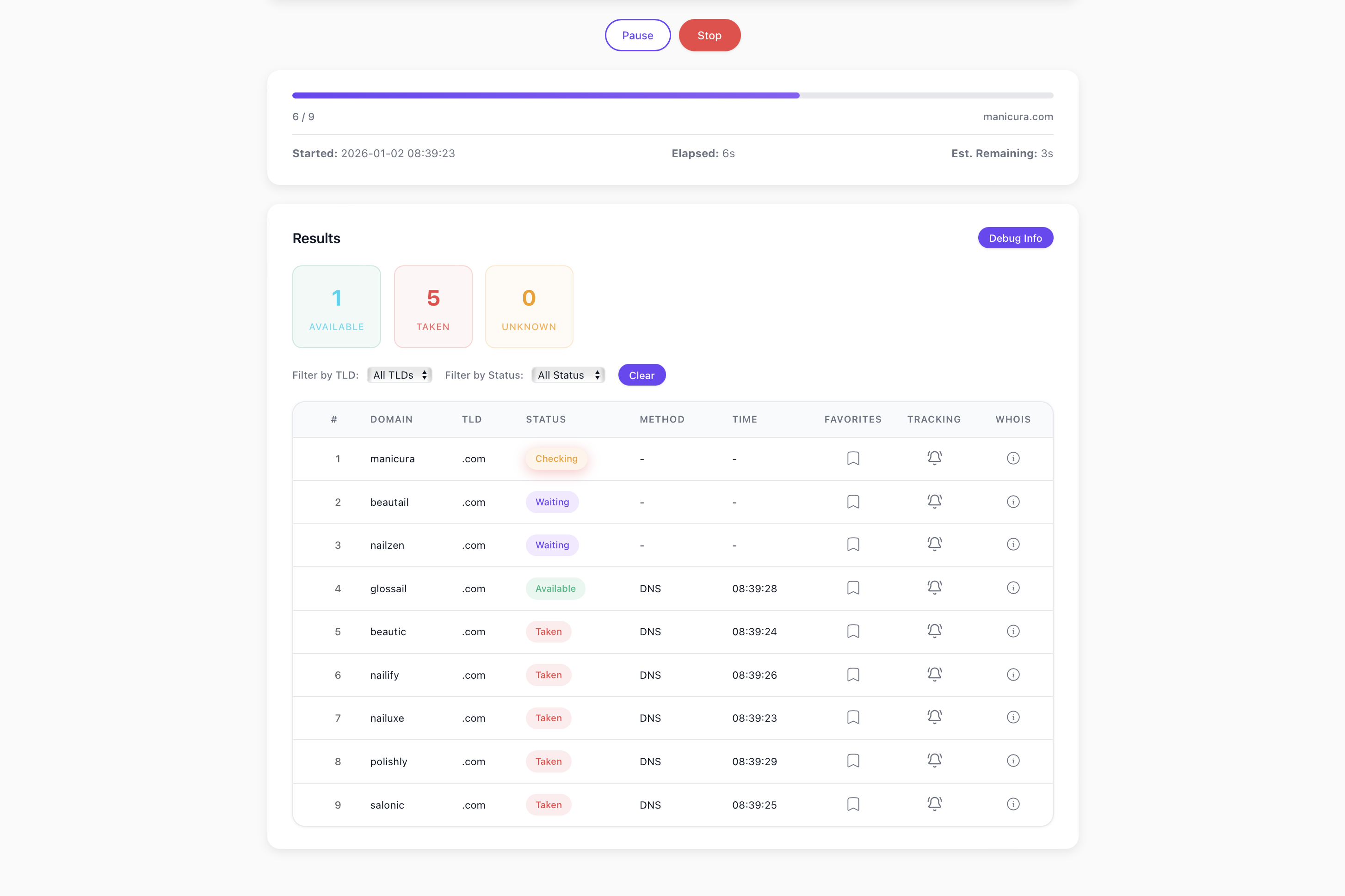
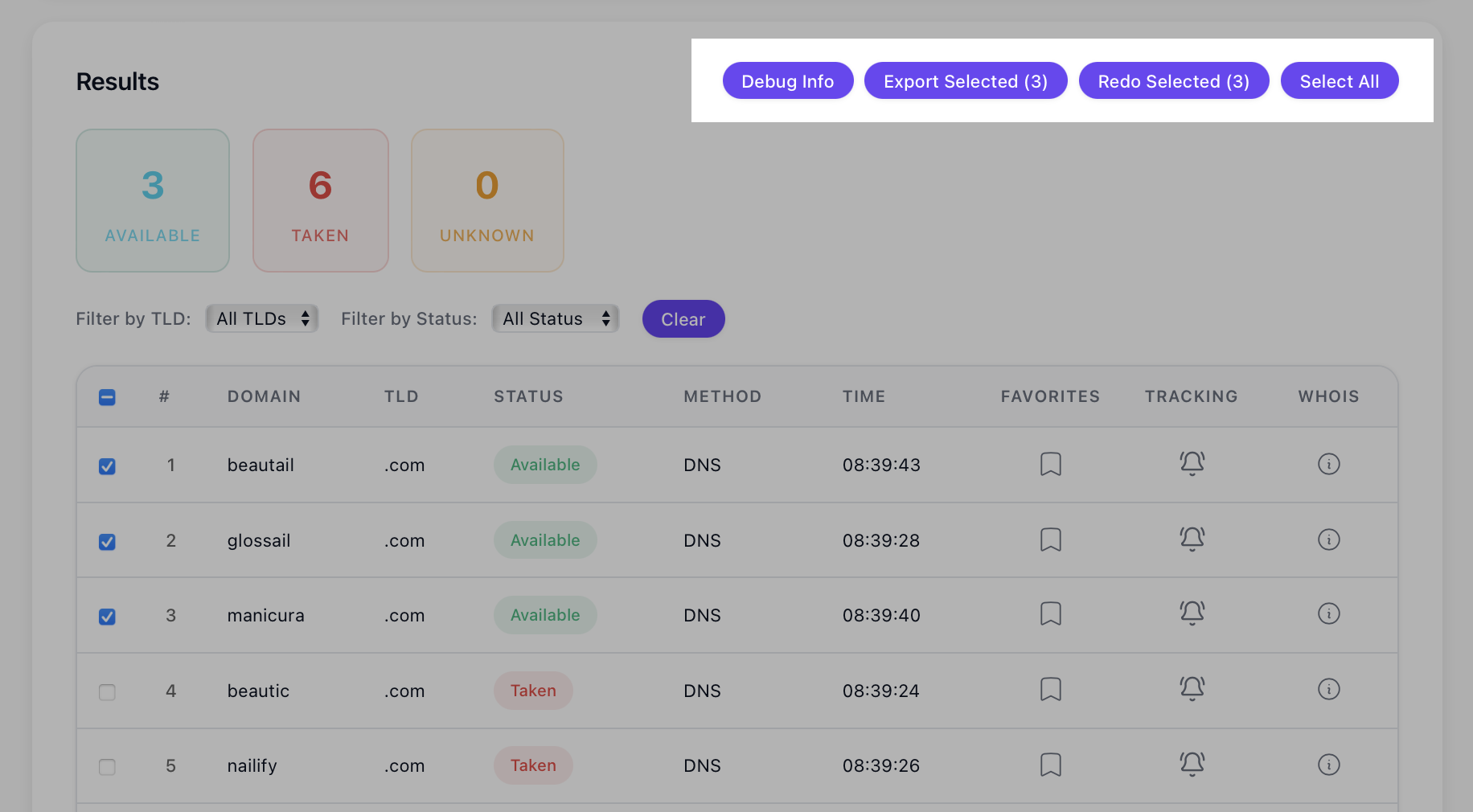
As domains are checked, you'll see real-time updates showing:
- Domain status (Available, Taken, or Unknown)
- Checking progress and statistics
- Time elapsed and estimated completion
- Pause/Resume/Stop controls
Understanding Status
Each domain will show one of three statuses:
- Available: Domain is confirmed available for registration
- Taken: Domain is registered and not available
- Unknown: Could not determine status (may be due to network issues or rate limiting)
Controlling the Check
You can control the checking process:
- Pause: Temporarily pause checking (you can resume later)
- Resume: Continue checking from where you paused
- Stop: Stop checking completely (results up to that point are saved)
Exporting Results
CSV Export
After checking completes, you can export your results:
- CSV Export: Download results as CSV file (UNLIMITED tier only)
- Log Download: Download detailed checking logs (UNLIMITED tier only)
Understanding Credits
How Credits Work
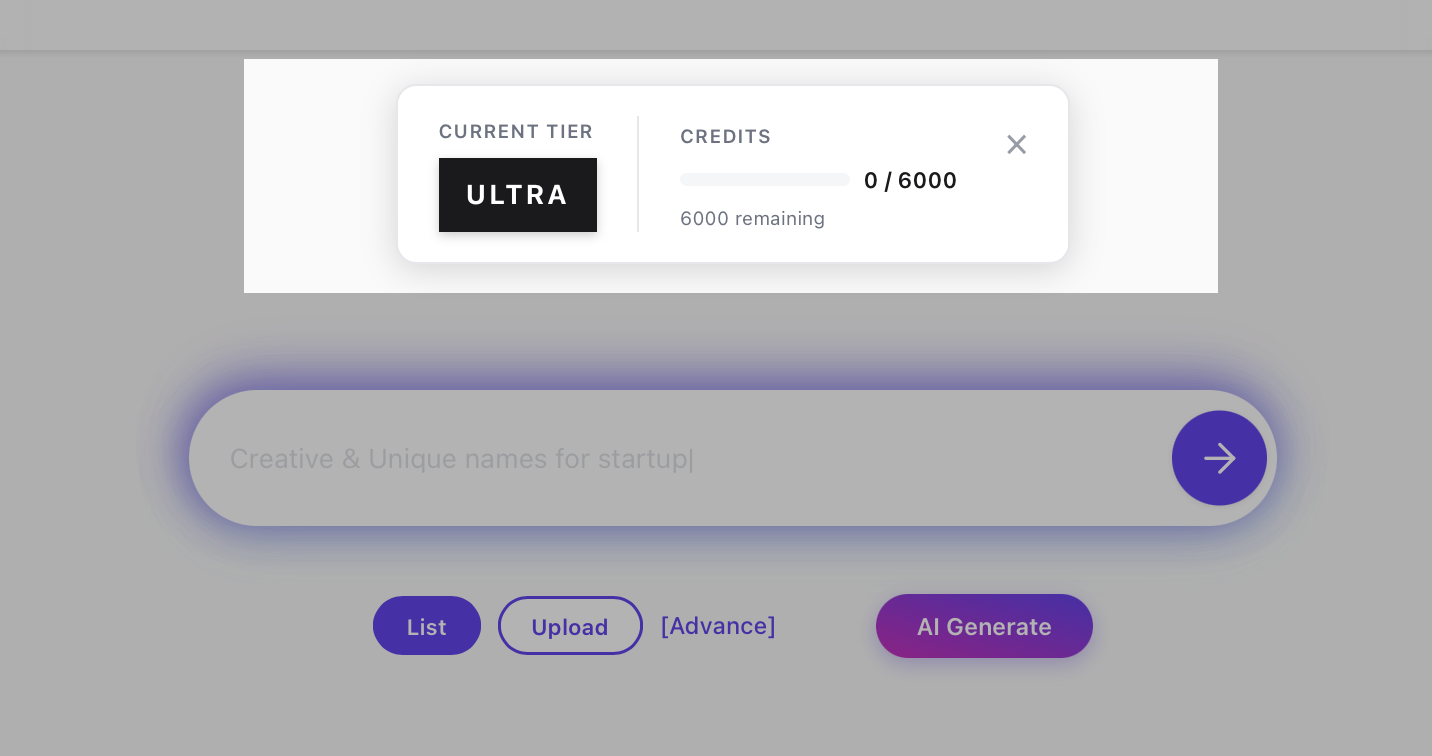
domTrace uses a credit-based system to track usage:
- 1 credit = 1 resolved domain check: Credits are only deducted for domains with resolved results (available or taken status). Domains that return "unknown" status do not consume credits.
- Daily reset: Credits reset at 12:00 AM Pacific Time (PDT/PST)
- Persistent tracking: Credit usage persists across login/logout sessions
- Tier limits: Each tier has a daily credit limit (FREE: 100, PRO: 2,000, ULTRA: 6,000)
💡 Credit Deduction Policy: Only domains with definitive results (available or taken) consume credits. If a domain check returns "unknown" status due to network issues, timeouts, or other technical reasons, no credit is deducted. This ensures you only pay for successful, resolved domain checks.
Pay-as-you-go (PAYG) Credits
PRO, ULTRA, and PAYG tier users can purchase additional PAYG credits:
- Pricing: $10 for 10,000 PAYG credits
- Expiration: PAYG credits expire 30 days after purchase
- Pooling: Multiple purchases pool together - when you add more credits, all existing credits have their expiration extended to 30 days from the new purchase
- Expiration Display: Your expiration date is shown on the profile page "Available PAYG Credits" card
- Email Notifications: You'll receive an email notification 5 days before your credits expire, reminding you to use them or add more
- Usage: PAYG credits are used first before daily credits (for PRO/ULTRA tiers)
Dollar Credit
Dollar credit is a balance that can be exchanged for PAYG credits or subscription tiers:
- Exchange Options:
- $10.00 → 1,000 PAYG Credits (expires in 30 days)
- $10.00 → 1 month Pro subscription
- $30.00 → 1 month Ultra subscription
- How Dollar Credit is Added:
- Admin additions: Regular admin can add up to $50.00 per transaction. Super admin can add up to $200.00 per transaction to any user.
- Promo codes: Promo codes created by regular admin: $50.00 max. Promo codes created by super admin: $200.00 max.
- Referral rewards: Up to $200.00 (referral rewards are created by super admin only).
- Maximum Total Balance: Regular users: $50.00 maximum. Super admin users: $200.00 maximum.
- Usage: Dollar credit can be exchanged from your profile page
- Non-expiring: Dollar credit does not expire but is subject to maximum balance limits
Credit Limit Exceeded
When you reach your daily credit limit, you'll see an alert message. You can either:
- Wait for the daily reset (12:00 AM Pacific Time)
- Upgrade to a higher tier for more credits
- Purchase PAYG credits (PRO, ULTRA, and PAYG tiers)
- Exchange dollar credit for PAYG credits (if you have dollar credit balance)
Subscription Tiers
FREE Tier
Perfect for getting started:
- Up to 50 domains per run
- 1 parallel lookup (sequential checking)
- Up to 5 runs per day
- 1-second delay minimum
- Default TLDs only (.com, .net, .org)
- 100 credits/day
PRO Tier
For domain investors and founders ($9.99/month or $79/year):
- Up to 500 domains per run
- Up to 2 parallel lookups (2× faster)
- Unlimited runs per day
- Custom TLD selection
- 2,000 credits/day
- Favorite lists (50 max)
- Domain availability tracking (10 slots) - Daily checks with email notifications
ULTRA Tier
For heavy domain investors ($24.99/month or $199/year):
- Up to 2,000 domains per run
- Up to 5 parallel lookups (super fast)
- Priority queue
- API access (limited rate)
- 6,000 credits/day
- Favorite lists (200 max)
- Domain availability tracking (50 slots) - Daily checks with email notifications
Favorites & Domain Tracking
Favorites
Save your favorite domains for quick access:
- Adding Favorites: Click the bookmark icon next to any domain in your results
- Viewing Favorites: Access your favorites list from your profile page
- Tier Limits: FREE tier: 10 favorites, PRO: 50 favorites, ULTRA: 200 favorites
Domain Availability Tracking
Track your favorite domains and get notified when they become available or change status:
- How It Works: Enable tracking on any favorited domain using the bell icon
- Daily Checks: Tracked domains are automatically checked once per day
- Status Display: View the current availability status and last check date on your favorites page
- Email Notifications: Receive email notifications when:
- A tracked domain becomes available
- A tracked domain's status changes (e.g., from "Available" to "Taken")
- Daily automated checks detect any status changes
- WHOIS Information: View detailed domain information by clicking the info icon (i) next to any favorite (paid tiers)
- Tier Limits:
- FREE tier: Not available (upgrade required)
- PRO tier: Track up to 10 domains
- ULTRA tier: Track up to 50 domains
- UNLIMITED tier: Track unlimited domains
Managing Your Account
Profile Settings
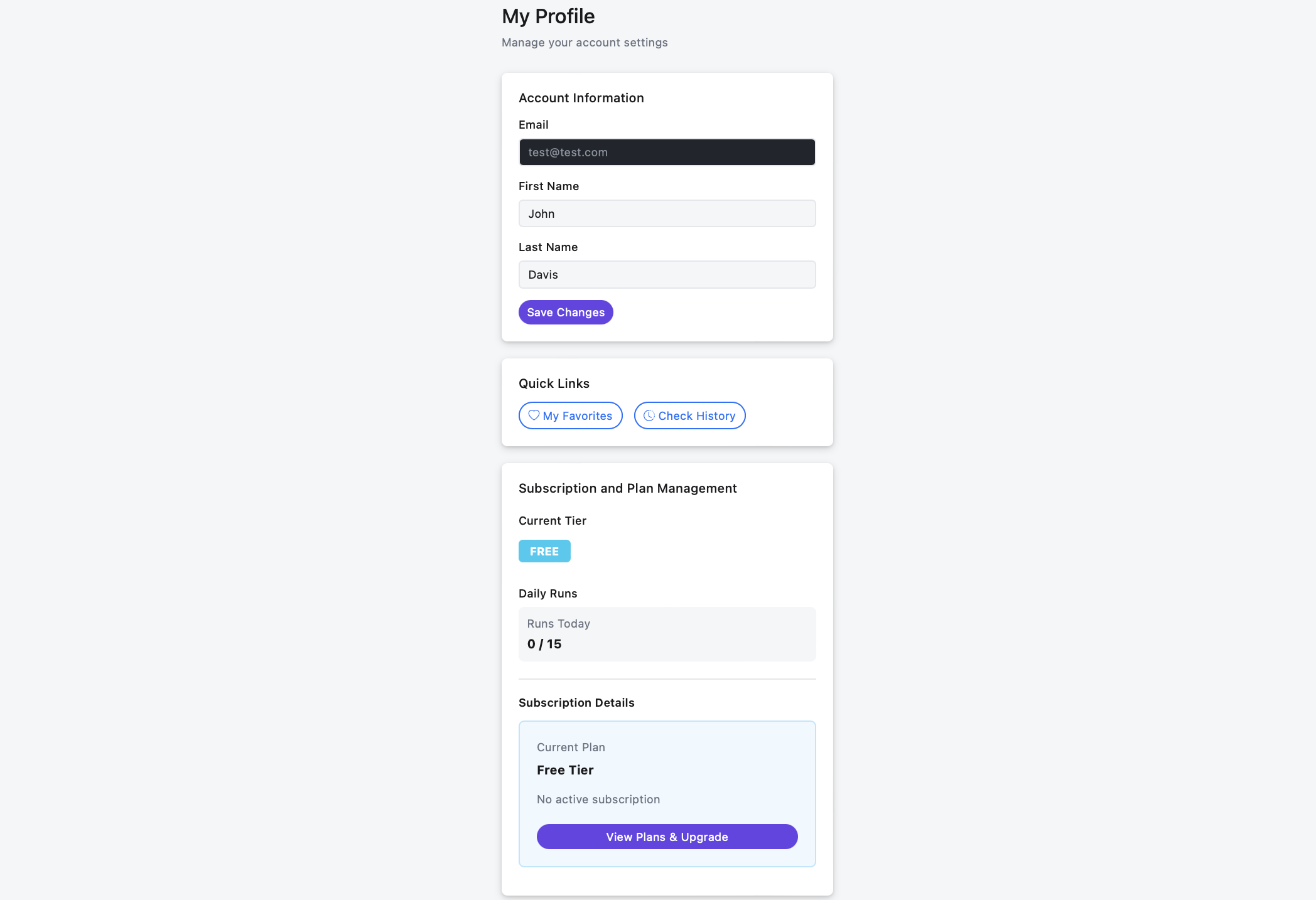
Access your profile to:
- Update your personal information (name, email)
- Change your password
- View your current tier and subscription status
- Manage account preferences
Account Deletion
You can delete your account at any time from your profile settings. This will disable your account (soft delete) and you won't be able to log in anymore. Super admin accounts cannot be deleted.
Tips & Tricks
- Use file upload for bulk checking - it's faster than typing domains manually
- Start with a small test run to understand how the system works
- Use appropriate delays to avoid rate limiting (especially for free tier)
- Check your credits before starting large runs
- Use custom TLDs (PRO+) to check multiple extensions at once
- Monitor your daily credit usage to plan your checking schedule
- Pause long-running checks if you need to stop temporarily
Frequently Asked Questions
How accurate are the domain availability checks?
domTrace uses multiple methods for accuracy including DNS lookup and WHOIS queries. While we strive for 100% accuracy, domain registration status can change rapidly. Always verify availability directly with a registrar before purchasing.
Can I check custom TLDs?
Custom TLD selection is available for PRO, ULTRA, and UNLIMITED tiers. FREE tier users are limited to default TLDs (.com, .net, .org).
What file formats are supported for upload?
Currently, only .txt files are supported. The file should contain one domain name per line.
What timezone are timestamps in?
All timestamps use Pacific Time (PDT/PST - America/Los_Angeles timezone), including domain check timestamps, credit reset times, and activity logs.
How do I upgrade my tier?
Visit the Pricing page to see available tiers and pricing. Contact support or use the upgrade options in your profile to change your subscription tier.
Support & Feedback
Need help or have feedback? We're here for you!
- Visit the Pricing page to see all available tiers
- Check the Terms of Service for legal information
- Contact support through your profile page